
Introduction
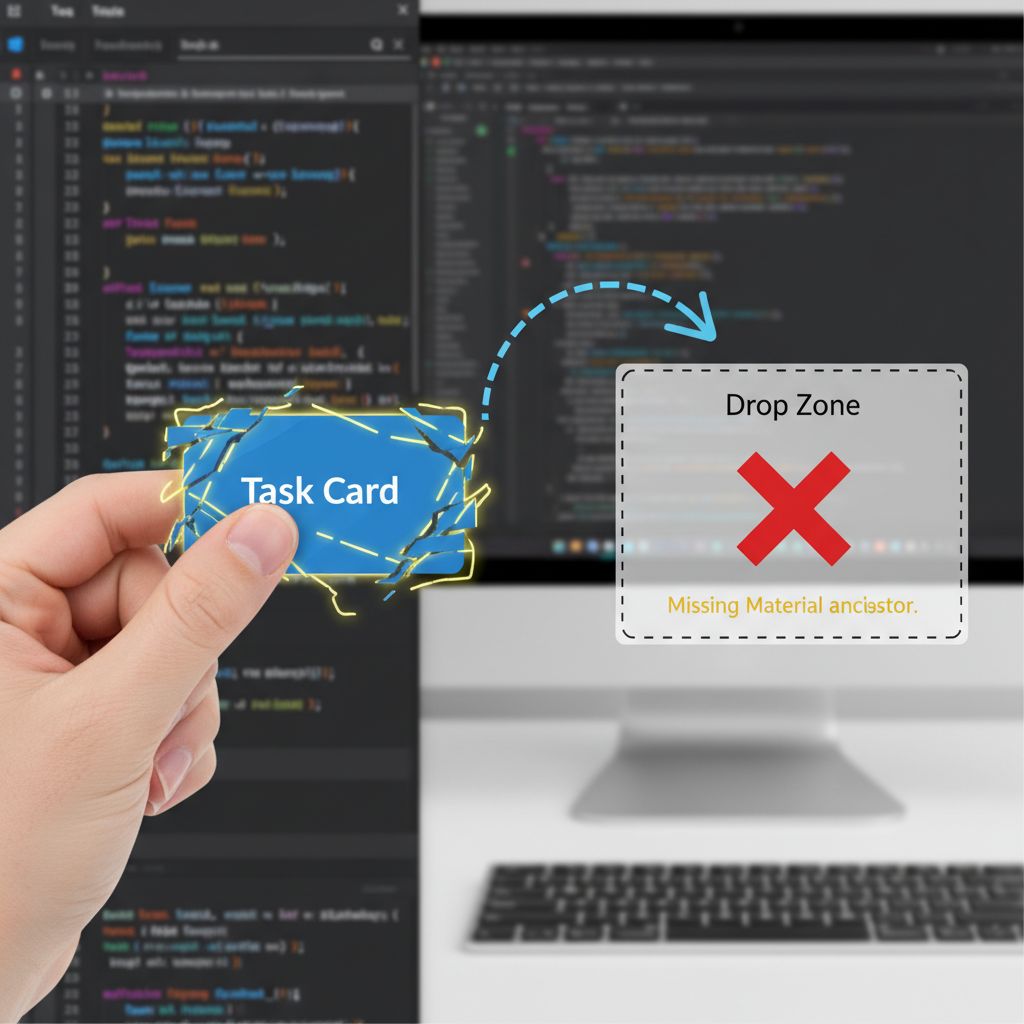
If you are trying to build a flutter drag and drop ui for the first time, you are probably feeling a mix of excitement and deep frustration right now. You’ve read that Flutter makes complex UI easy, so moving a widget from one side of the screen to another should be a breeze, right? Then you try it. You wrap your widget in a Draggable, you set up a DragTarget, you drag the item across your screen, let go, and… nothing happens. The item snaps right back to where it started. No errors, no crashes, just silent failure.
I have been building production Flutter apps for over five years, and I can tell you right now: validate your frustration. You are not alone. Almost every beginner Flutter developer hits this exact wall. In my early days, I spent three hours debugging a simple Kanban board feature because my dragged items simply refused to drop into their designated columns.
This article is written specifically for beginner to intermediate developers who are actively stuck trying to make the flutter draggable widget communicate with a DragTarget. Whether you are building an inventory management system, a puzzle game, or a task-tracking app, the underlying mechanics are exactly the same.
By the end of this guide, you will understand exactly why your drag-and-drop implementation is failing, how Flutter actually handles data passing through the UI overlay, and how to build a robust, scalable flutter dragtarget example that works flawlessly on the latest stable Flutter releases (like Flutter 3.29 and beyond).
What the Problem Is
When developers first attempt to implement drag-and-drop in Flutter, they usually experience the problem in one of three ways:
- The Silent Rejection: You drag an item over the target, release your finger, and the item simply animates back to its original position. The
onAcceptcallback inside your DragTarget never fires. - The Ugly Feedback Widget: When you start dragging, the widget attached to your finger suddenly loses all its styling. Text gets massive, gets a hideous yellow double-underline, and the layout breaks completely.
- The Ghost State: The drop succeeds, but the original item doesn’t disappear from its starting location, leaving you with duplicate data on your screen.
You might be staring at your IDE right now, wondering why a framework so intuitive requires two completely separate widgets to perform one logical action. The documentation tells you to use a generic type <T>, but the connection between the draggable source and the target destination feels entirely disconnected in your code.
Why This Happens (Real Explanation)
To fix this, we have to look at how Flutter actually handles drag-and-drop under the hood. It is fundamentally different from web development (HTML5 drag and drop) or native iOS/Android implementations.
In Flutter, a flutter draggable widget and a DragTarget do not actually know about each other’s existence. They don’t communicate via the standard widget tree. Instead, they communicate through a hidden layer called the Overlay and a shared data payload.
When you press and hold a Draggable, Flutter does three things:
- It leaves the original widget (or a placeholder) in the widget tree.
- It creates a brand new widget (the
feedback) and paints it on the global Overlay, tracking your finger’s coordinates. - It attaches a specific piece of data (the
dataproperty) to your finger’s pointer.
When your finger moves over a DragTarget, the target inspects the data attached to your pointer. Here is the critical point of failure: The DragTarget asks, “Is this data the exact type I am expecting?” If your Draggable is sending a String, but your DragTarget is explicitly typed to expect an int (or even a custom class like TaskModel), the DragTarget will silently reject the hover. It will act as if nothing is happening.
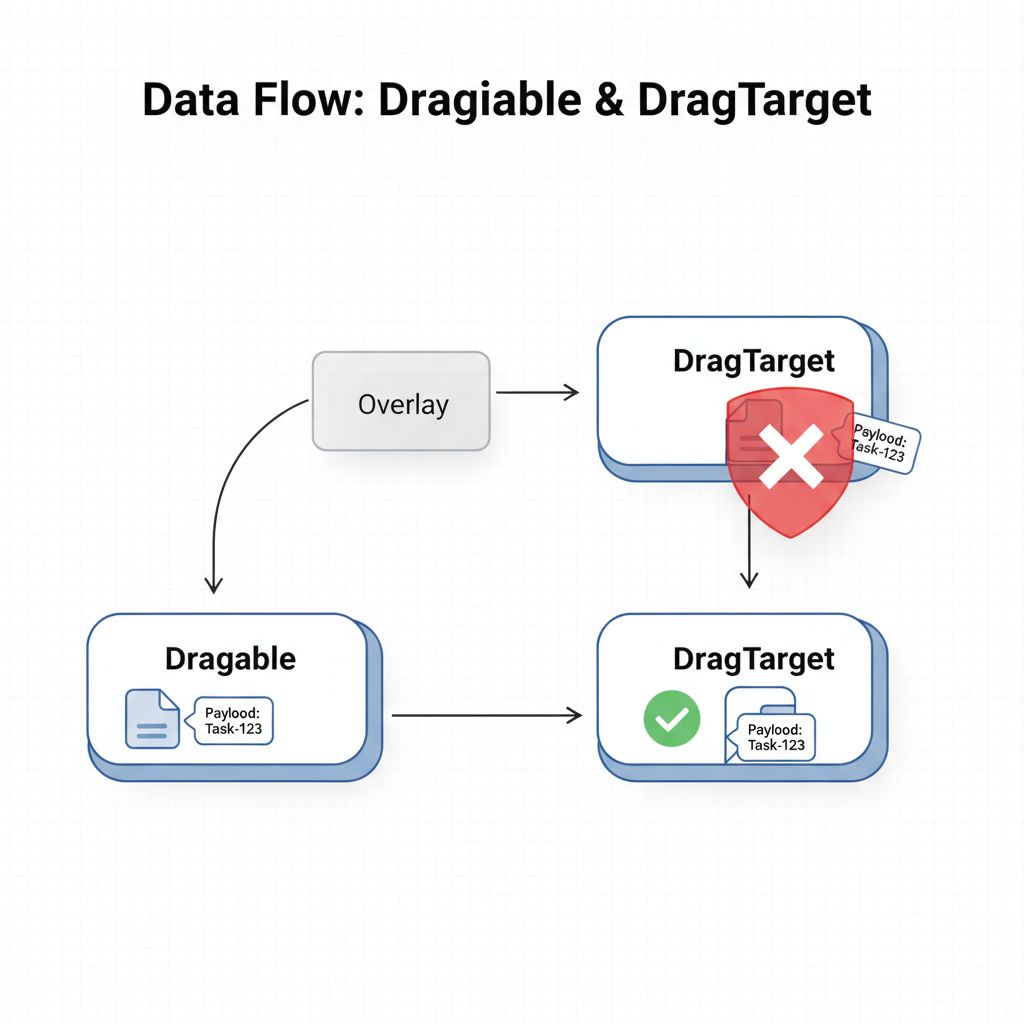
Furthermore, because the feedback widget is painted on the Overlay, it is completely removed from your app’s standard MaterialApp context. It loses access to default text styles, themes, and inherited widgets. That is why your dragged widget suddenly looks like a broken, unstyled mess with yellow underlines.
When You Usually See This Issue
You will typically run into these hurdles when you graduate from simple static UIs to interactive, state-driven applications. In real-world production apps, this happens in scenarios such as:
- Kanban Boards: Moving task cards between “To Do”, “In Progress”, and “Done” columns.
- E-commerce Apps: Dragging a product image directly into a “Shopping Cart” icon at the bottom of the screen.
- Custom Dashboards: Allowing users to reorder analytics widgets or charts on their personalized home screen.
- Inventory Systems: Assigning equipment to specific employees by dragging an item onto a user profile.
In all these cases, the UI needs to be highly responsive. Real users expect immediate visual feedback when they hover over a valid target, and they expect the state to update instantly when they let go.
Quick Fix Summary (Decision Shortcut)
If you are in a rush and just need to unblock your current task, check these three things immediately:
- Match the Generic Types EXACTLY: Ensure your
Draggable<String>is matched with aDragTarget<String>. If they don’t match, the drop will fail silently. - Wrap Feedback in Material: If your dragged widget looks terrible (yellow text), wrap your
feedbackwidget in aMaterial(color: Colors.transparent, child: ...)to restore default styling. - Implement onAccept: The UI won’t update itself. Inside the DragTarget’s
onAcceptcallback, you MUST callsetState()(or your state manager’s equivalent) to update the underlying data list and rebuild the UI.
Step-by-Step Solution (Core Section)
Let’s build a completely working, robust flutter dragtarget example. We will create a simple UI where we drag a “Task” from a starting column and drop it into a “Completed” column. We will ensure the types match, the UI updates, and the visual feedback is perfect.
Step 1: Define the Data Model
First, we need a clear data type. While you can drag simple Strings or Integers, real apps drag objects. Let’s define a simple Task class.
class Task {
  final String id;
  final String title;

  Task({required this.id, required this.title});
}
Step 2: Managing the State
We need two lists to represent our two columns. When a drag is successful, we will remove the task from the first list and add it to the second.
class DragAndDropDemo extends StatefulWidget {
  @override
  _DragAndDropDemoState createState() => _DragAndDropDemoState();
}

class _DragAndDropDemoState extends State<DragAndDropDemo> {
  List<Task> todoTasks =[
    Task(id: '1', title: 'Write Blog Post'),
    Task(id: '2', title: 'Fix Bug #402'),
  ];

  List<Task> doneTasks =[];

  // ... build method will go here
}
Step 3: Creating the flutter draggable widget
Now we create the draggable items. Pay close attention to the <Task> generic type and the feedback widget.
Widget buildDraggableTask(Task task) {
  return Draggable<Task>(
    // 1. The Data Payload
    data: task,

    // 2. The widget left behind while dragging
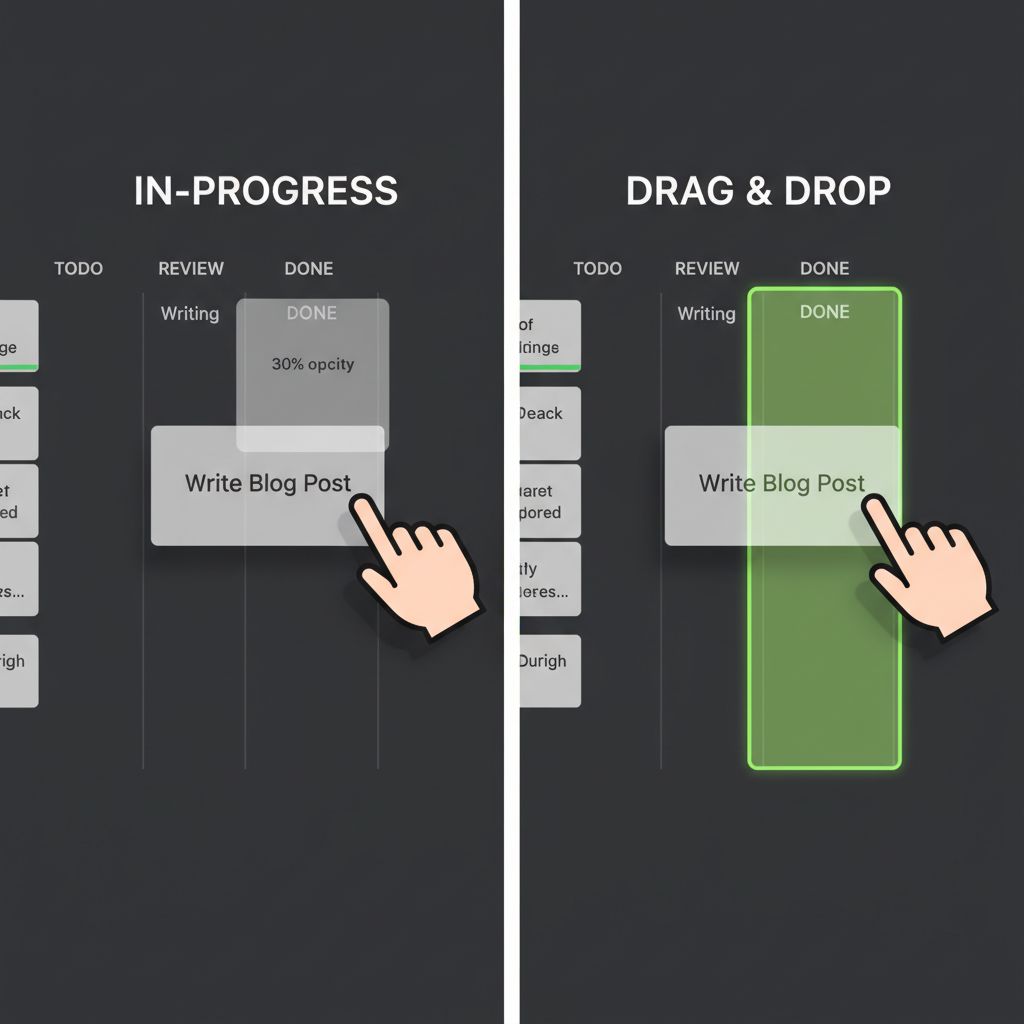
    childWhenDragging: Opacity(
      opacity: 0.3,
      child: TaskCard(task: task),
    ),

    // 3. The widget attached to your finger
    feedback: Material(
      elevation: 8.0,
      color: Colors.transparent,
      child: SizedBox(
        width: 200, // Constrain the width for the overlay
        child: TaskCard(task: task),
      ),
    ),

    // 4. The default widget sitting in the list
    child: TaskCard(task: task),
  );
}
Why this works:
- We explicitly typed
Draggable<Task>. This packages our custom object perfectly. - We wrapped the
feedbackin aMaterialwidget. Because the feedback widget lives in the Overlay, it loses the Material context of the app. Without this, your text will have ugly yellow lines underneath. - We used
childWhenDraggingto leave a semi-transparent “ghost” of the card in the original list, letting the user know exactly where it came from.
Step 4: Creating the DragTarget
Now, let’s build the drop zone. The DragTarget is responsible for receiving the data and updating the UI state based on hover events.
Widget buildDragTarget() {
  return DragTarget<Task>(
    // 1. Validate the incoming data
    onWillAcceptWithDetails: (DragTargetDetails<Task> details) {
      // You can add logic here. E.g., only accept tasks with certain IDs.
      // Returning true means "Yes, I will accept this drop."
      return true;
    },

    // 2. Handle the successful drop
    onAcceptWithDetails: (DragTargetDetails<Task> details) {
      final task = details.data;
      setState(() {
        todoTasks.removeWhere((t) => t.id == task.id);
        doneTasks.add(task);
      });
    },

    // 3. Build the UI based on hover state
    builder: (context, candidateData, rejectedData) {
      // candidateData contains the item currently hovering over the target
      bool isHovered = candidateData.isNotEmpty;

      return Container(
        height: 300,
        width: double.infinity,
        decoration: BoxDecoration(
          color: isHovered ? Colors.green.withOpacity(0.2) : Colors.grey[200],
          border: Border.all(
            color: isHovered ? Colors.green : Colors.grey,
            width: 2,
          ),
          borderRadius: BorderRadius.circular(12),
        ),
        child: Center(
          child: doneTasks.isEmpty
              ? Text('Drop Tasks Here')
              : ListView.builder(
                  itemCount: doneTasks.length,
                  itemBuilder: (context, index) => TaskCard(task: doneTasks[index]),
                ),
        ),
      );
    },
  );
}
Why this works:
- The type
DragTarget<Task>exactly matches our Draggable. This is non-negotiable. - The
builderprovidescandidateData. This is a list of valid data payloads currently hovering over the target. By checkingcandidateData.isNotEmpty, we can dynamically change the background color to green, giving the user immediate, satisfying visual feedback that they are in the right spot. - Inside
onAcceptWithDetails(which replaced the olderonAcceptin recent Flutter versions for better coordinate tracking), we perform the actual state mutation usingsetState. We remove the item from the source list and add it to the destination list.
Common Mistakes Developers Make
Even with the code above, things can go wrong if you aren’t careful. Here are the most frequent mistakes I see in code reviews:
- Forgetting to specify the Generic Type: Writing
Draggable(data: myTask...)without the<Task>bracket. Dart will infer the type asdynamicorObject, and your strictly typed DragTarget will reject it. Always explicitly type both widgets. - Heavy Widgets in Feedback: The
feedbackwidget is repainted on every single frame as your finger moves. If you put a complex widget tree with network images or heavy animations inside the feedback, your app will drop frames and feel incredibly laggy. Keep the feedback widget as lightweight as visually possible. - Ignoring State Management: Assuming the framework moves the widget for you. Flutter only passes the data. You are 100% responsible for removing the widget from the old list and rendering it in the new list.
- Using the wrong context for Overlay: Sometimes developers try to use
Navigator.of(context)inside the feedback widget. Because the feedback lives in the Overlay, standard context lookups often fail or return unexpected results.
Warnings and Practical Tips
⚠️ Warning on State Loss: When you move a widget from one part of the tree to another via drag-and-drop, it is technically destroyed and rebuilt. If your dragged widget has internal state (like a playing video or an open text field), that state will be lost. If you are dropping items into complex layouts, such as a Flutter ExpansionTile, be highly aware that expanding or collapsing the tile during a drag operation can cause the target to rebuild and cancel the drop if you aren’t managing your keys properly.
💡 Tip: Haptic Feedback: To make your flutter drag and drop ui feel premium and native, add a slight vibration when a drop is accepted. Import package:flutter/services.dart and call HapticFeedback.lightImpact(); inside your onAcceptWithDetails callback.
💡 Tip: Asynchronous Drops: Sometimes dropping an item requires a server call (e.g., updating a database). Don’t freeze the UI while waiting. Instead, accept the drop immediately, show a custom shimmer loading effect in the DragTarget to indicate processing, and then render the final widget once the server responds.
Edge Cases and Limitations
While the Draggable and DragTarget system is powerful, it has limitations you must design around.
Scrolling While Dragging
If you have a long list of items and you want to drag an item from the top to a target that is currently off-screen at the bottom, you will run into trouble. Standard Draggable widgets do not automatically scroll the screen when you drag them to the edge. If your primary goal is simply to reorder a single list, do not build it from scratch with Draggable/DragTarget. Instead, use Flutter’s built-in ReorderableListView, which handles edge-scrolling automatically.
Dropping Outside the Target
What happens if the user changes their mind and drops the widget in the middle of nowhere? By default, the onDraggableCanceled callback fires. You can use this to animate the widget snapping back to its original position. If you don’t handle this gracefully, the user might think the app froze or lost their data.
What Happens If You Ignore This Problem
If you leave a buggy drag-and-drop implementation in your production app, the consequences compound quickly. Users will attempt to drag items, see the ugly yellow text, experience silent failures when dropping, and immediately lose trust in your application.
Worse, if your state management isn’t perfectly synced with your DragTargets, you can create “ghost data”—where an item appears in the target visually but hasn’t actually been removed from the source list in your database. This leads to data corruption, corrupted API calls, and inevitable crash reports when the user tries to interact with the duplicated widget.
FAQ Section
How do I restrict what a DragTarget can accept?
Use the onWillAcceptWithDetails callback. It gives you access to the data hovering over it. If you return false, the DragTarget will ignore the drop. For example: return details.data.status != 'locked';.
Can I change the mouse cursor when hovering over a DragTarget?
Yes, for Flutter Web and Desktop, you can wrap your DragTarget in a MouseRegion widget. Change the cursor property to SystemMouseCursors.grabbing when a drag is active.
Why is my Draggable feedback widget offset from my finger?
This usually happens if you are applying complex transforms or margins to the feedback widget. The Overlay positions the top-left corner of the feedback widget exactly where your pointer is (or uses the dragAnchorStrategy). To center it, use the childDragAnchorStrategy or wrap your feedback in a FractionalTranslation.
Is DragTarget the only way to receive dragged data?
No. If you are dealing with files being dragged from outside the app (like dragging a PDF from your desktop into a Flutter web/desktop app), you need to use platform-specific drop zone packages, as Flutter’s internal DragTarget only handles widgets originating from within the Flutter app itself. You can read more about handling raw pointer data in the Dart documentation or official Flutter desktop guides.
Final Takeaway & Conclusion
Building a flawless flutter drag and drop ui doesn’t require complex math or third-party packages; it simply requires a strict adherence to Flutter’s rules of data passing. The illusion of moving a widget is just that—an illusion. You are actually passing a data object through the Overlay and rebuilding your UI based on where that data lands.
Your Actionable Checklist:
- Verify that the generic type
<T>on yourDraggableexactly matches yourDragTarget. - Wrap your
feedbackwidget in aMaterialwidget to prevent styling errors. - Use the
candidateDatain the DragTarget builder to highlight the drop zone. - Call
setState()insideonAcceptWithDetailsto actually move the data in your underlying lists.
Take a deep breath, go back to your code, and check those generic types. Once you align the data payload with the target’s expectations, that silent failure will disappear, and your widgets will snap into place exactly as you envisioned. You’ve got this.