Introduction
If you are reading this, you are probably staring at your debug console, completely blocked by a massive wall of red text. You followed the official documentation, added the packages, and wrote the code. But the moment you tap that “Sign in with Google” button, the bottom sheet pops up, disappears instantly, and throws a PlatformException(sign_in_failed) or DEVELOPER_ERROR.
First, take a deep breath. I have been building Flutter apps for over five years, and I can promise you: every single Flutter developer has fought this exact battle. Setting up Flutter Firebase Google sign in is notoriously fragile because it relies on a perfect alignment between your local machine’s cryptographic keys, Google Cloud Console, and Firebase. One missing character or skipped configuration step, and the whole flow breaks.
In 2026, with the latest updates to Flutter 3.24+ and the Firebase CLI, the setup process has evolved. While tools like flutterfire have automated a lot of the boilerplate, they still do not automatically handle the most critical part: the SHA-1 fingerprint verification.
This article is written specifically for developers who are stuck. We are not going to talk about abstract authentication theory. Instead, we are going to debug exactly why your flutter google auth 2026 setup is failing, how to correctly extract and register your SHA keys, and how to write production-ready Dart code to make it work reliably.
What the Problem Is
When developers attempt to implement Firebase authentication in Flutter, they rarely fail at the Dart code level. The problem manifests as a silent failure in the UI, accompanied by a brutal stack trace in the console.
If you are experiencing this issue, you are likely seeing one of these three specific errors in your logs:
PlatformException(sign_in_failed, com.google.android.gms.common.api.ApiException: 10, null, null)PlatformException(sign_in_failed, com.google.android.gms.common.api.ApiException: 12500, null, null)- An immediate crash or unhandled exception when calling
GoogleSignIn().signIn()
To a developer, this looks like a code issue. You might think you configured the GoogleSignIn instance incorrectly or that your asynchronous code is broken. But this is a deception. The error is actually a security rejection from Google Play Services.

Why This Happens (Real Explanation)
To fix this permanently, you need to understand the “Trust Triangle” of Google Authentication. Google does not just trust your Dart code because it has the right Firebase Project ID. It requires cryptographic proof that the specific computer (or CI/CD server) building the app is authorized to request user data.
When you call the Google Sign-In method, your Flutter app asks the native Android OS (specifically Google Play Services) to show the account picker. Play Services then checks the app’s digital signature (the SHA-1 fingerprint) against the list of authorized fingerprints in your Firebase Console.
If the fingerprint of the machine that compiled your app is missing from Firebase, Google Play Services immediately aborts the process and returns ApiException: 10 (Developer Error). It is essentially saying: “I don’t know who compiled this app, so I refuse to hand over the user’s Google token.”

When You Usually See This Issue
This problem rarely happens randomly; it is almost always triggered by specific environmental changes. You will typically encounter this nightmare in the following scenarios:
- Setting up a brand new project: You initialized Firebase but forgot the SHA-1 step.
- Getting a new laptop: Your new machine generated a completely new debug keystore. The app that worked yesterday on your old Mac now throws errors on your new one.
- Working on a team: Your coworker set up Firebase using their machine’s SHA-1. When you pull the repo and run it, it fails for you.
- Building for Production (Release Mode): The app works perfectly in debug mode, but when you build the APK or App Bundle for the Play Store, Google Sign-In breaks. (This is because release builds use a different production keystore).
Quick Fix Summary (Decision Shortcut)
If you are in a rush and just need the problem solved so you can get back to building your app, here is the exact checklist to fix the issue in 99% of cases:
- Step 1: Generate your machine’s SHA-1 and SHA-256 keys using the
keytoolcommand. - Step 2: Paste BOTH keys into your Firebase Project Settings under your Android app configuration.
- Step 3: Go to the Authentication > Settings tab in Firebase and ensure you have selected a Support Email. (Missing this is the #2 cause of silent failures).
- Step 4: Re-download the
google-services.jsonfile and place it inandroid/app/, or runflutterfire configureagain to update the generated Dart options. - Step 5: Completely uninstall the app from your emulator/device and run a fresh
flutter run.
Step-by-Step Solution (Core Section)
Let’s walk through the complete, modern 2026 setup to ensure your firebase authentication flutter integration is bulletproof. We will cover the exact commands, the cloud configuration, and the Dart implementation.
Step 1: Generating the SHA-1 and SHA-256 Keys
Your local machine has a hidden file called debug.keystore. This file signs your debug builds. We need to extract its fingerprints.
Open your terminal and run the following command based on your operating system:
For Mac / Linux:
keytool -list -v -keystore ~/.android/debug.keystore -alias androiddebugkey -storepass android -keypass android
For Windows:
keytool -list -v -keystore "\%USERPROFILE\%\.android\debug.keystore" -alias androiddebugkey -storepass android -keypass android
When you run this, you will see a block of text containing your Certificate Fingerprints. Copy the strings labeled SHA1 and SHA256. You need both.
Step 2: Registering Keys in Firebase
Now, head over to the Firebase Console. Navigate to Project Settings > General. Scroll down to your Android App. Click Add fingerprint and paste your SHA-1 key. Repeat the process for the SHA-256 key.
Crucial step: If you are working on a team, every developer must add their machine’s SHA-1 key to this list. Firebase allows multiple keys.
Step 3: The “Support Email” Trap
This is a massive trap that catches even senior developers. Google OAuth requires a public-facing email address to show users on the consent screen. If you skip this, the API silently fails.
In Firebase, go to Authentication > Settings > Authorized Domains. Ensure your domains are listed. Then, go to the Google Cloud Console (linked from your Firebase project), navigate to APIs & Services > OAuth consent screen, and verify that a User support email is selected.
Step 4: Writing Production-Ready Dart Code
Now that the infrastructure is correct, let’s write the Dart implementation. We will use the official google_sign_in and firebase_auth packages.
When building your authentication layer, it is best to isolate this logic. Following a solid Flutter clean architecture folder structure ensures your UI does not get tangled with Firebase SDK calls. We will create a dedicated AuthRepository.
import 'package:firebase_auth/firebase_auth.dart';
import 'package:google_sign_in/google_sign_in.dart';
import 'package:flutter/foundation.dart';

class AuthRepository {
  final FirebaseAuth _auth = FirebaseAuth.instance;
  final GoogleSignIn _googleSignIn = GoogleSignIn();

  /// Initiates the Google Sign-In flow and authenticates with Firebase.
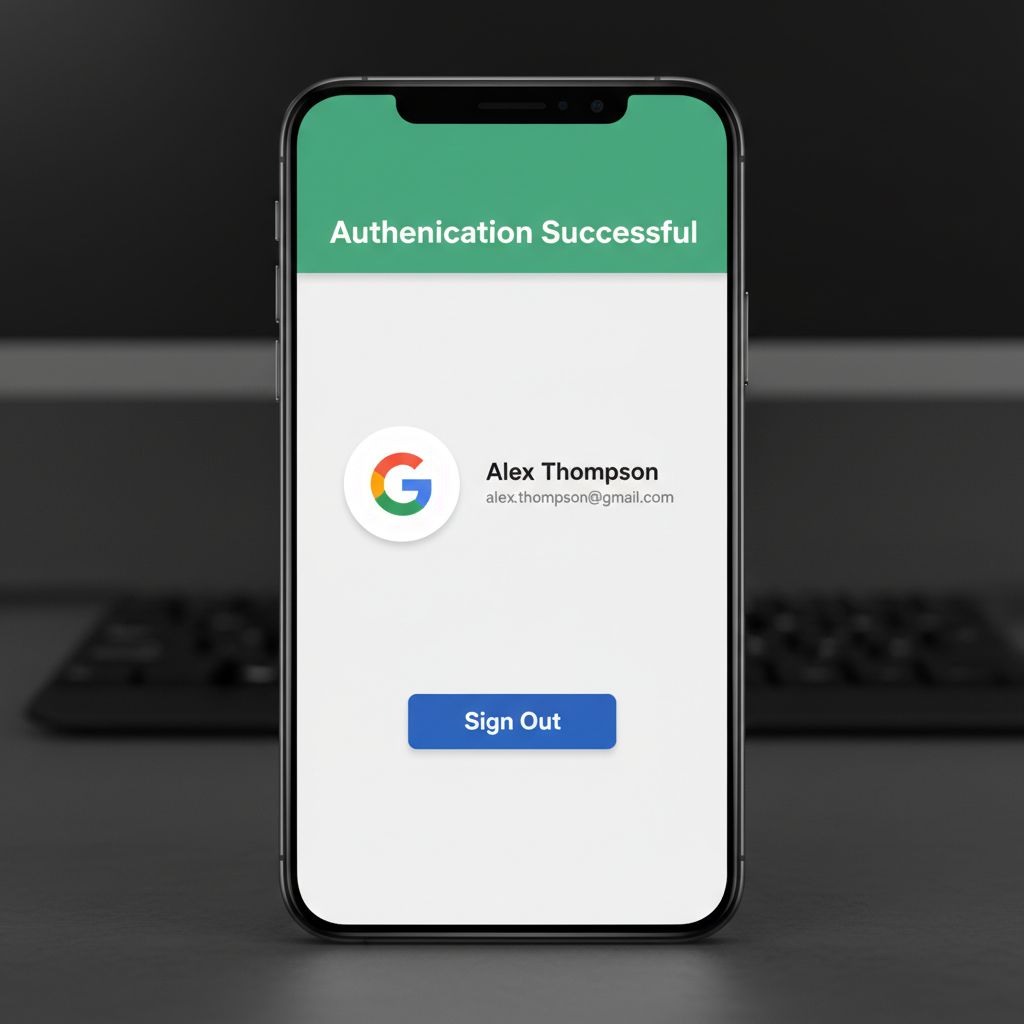
  Future<UserCredential?> signInWithGoogle() async {
    try {
      // 1. Trigger the Google Authentication flow
      final GoogleSignInAccount? googleUser = await _googleSignIn.signIn();

      // If the user cancels the sign-in, return null
      if (googleUser == null) {
        debugPrint('User canceled Google Sign-In');
        return null;
      }

      // 2. Obtain the auth details from the request
      final GoogleSignInAuthentication googleAuth = await googleUser.authentication;

      // 3. Create a new credential for Firebase
      final OAuthCredential credential = GoogleAuthProvider.credential(
        accessToken: googleAuth.accessToken,
        idToken: googleAuth.idToken,
      );

      // 4. Sign in to Firebase with the credential
      return await _auth.signInWithCredential(credential);

    } on FirebaseAuthException catch (e) {
      debugPrint('Firebase Auth Error: ${e.message}');
      rethrow;
    } catch (e) {
      debugPrint('Unknown Google Sign-In Error: $e');
      rethrow;
    }
  }

  /// Signs the user out of both Firebase and Google
  Future<void> signOut() async {
    await _googleSignIn.signOut();
    await _auth.signOut();
  }
}
Why this code works:
- Separation of Concerns: We first authenticate with Google (getting the
accessTokenandidToken), and then we pass those tokens to Firebase. These are two distinct steps. - Cancellation Handling: Users often tap outside the Google account picker bottom sheet. Checking
if (googleUser == null)prevents your app from crashing with a null pointer exception. - Robust Error Handling: We catch
FirebaseAuthExceptionspecifically to handle Firebase-related issues (like disabled accounts) separately from generic platform errors. If you are building a large app, you should consider routing these errors through a global handler. For instance, applying concepts from our guide on Mastering Flutter Dio Interceptor Error Handling can inspire how you globally manage and report API failures.
Common Mistakes Developers Make
Even with the right steps, small oversights can ruin the implementation. Here are the most frequent mistakes I see in production environments:
- Forgetting the Release SHA-1: Your app works perfectly on your emulator. You build an App Bundle, upload it to Google Play, and suddenly users report that login is broken. Why? Because Google Play uses a different signing key for production (App Signing by Google Play). You must copy the production SHA-1 from the Google Play Console and add it to Firebase.
- Not updating
google-services.json: If you add a new SHA-1 key to Firebase, you must theoretically download thegoogle-services.jsonfile again. However, in 2026, runningflutterfire configurein your terminal is the preferred way to sync these changes directly into yourfirebase_options.dartfile. - Messing up the iOS Configuration: While Android relies on SHA keys, iOS relies on the
REVERSE_CLIENT_ID. If you forget to add this to yourInfo.plistunderCFBundleURLTypes, the app will instantly crash on iOS when the Google button is tapped. - Tightly coupling Auth State to the UI: Don’t call
FirebaseAuth.instancedirectly inside your widgets. To propagate this user state across your app reactively, you need a robust state management solution. If you are still deciding on architecture, our deep dive on Riverpod vs Provider Flutter explains why modern apps prefer Riverpod for listening to authentication streams.
Warnings and Practical Tips
⚠️ Warning: Never commit your keystore files to version control. Your keystore is your app’s identity. If a malicious actor gets your production keystore, they can publish fake updates to your app. Always add *.keystore and *.jks to your .gitignore.
💡 Tip: Use Dependency Injection for your AuthRepository. As your app scales, you will need to access the user’s ID token across multiple services (e.g., attaching it to HTTP headers). Using a service locator makes this trivial. Check out our guide on Mastering get_it Flutter Dependency Injection to see how to inject your AuthRepository globally.
💡 Tip: Handle Token Expiration. Firebase ID tokens expire every hour. The Firebase SDK handles refreshing this automatically under the hood, but if your backend server requires the token, ensure you are listening to FirebaseAuth.instance.idTokenChanges() rather than just fetching it once.
Edge Cases and Limitations
While this setup covers iOS and Android, web implementations have different requirements. For Flutter Web, you do not use SHA keys. Instead, you must configure the Authorized JavaScript origins and Authorized redirect URIs in the Google Cloud Console. If you test your web app on a random localhost port that isn’t whitelisted, Google Auth will block the request with a CORS or mismatch error. Always run your web builds on a fixed port during development (e.g., flutter run -d chrome --web-port=5000).
Additionally, if you are using advanced state management, deciding how to handle the loading state during the OAuth redirect can be tricky. If you are debating between patterns, reading up on Flutter Cubit vs BLoC can help you structure the AuthLoading, AuthAuthenticated, and AuthUnauthenticated states cleanly.
What Happens If You Ignore This Problem
If you try to bypass proper SHA key management by using hacky workarounds (like disabling security rules or using anonymous auth as a crutch), you are setting a ticking time bomb for your production app.
Without properly configured Google Sign-In, you lose the ability to seamlessly onboard users. If your release SHA-1 is missing, your app will ship broken. Users will download it, tap “Sign In”, experience a silent failure, and immediately uninstall your app, leaving a 1-star review. Authentication is the front door to your application; if the lock is broken, nobody gets inside.
FAQ Section
How do I find my SHA-1 key if I’m using VS Code?
You don’t find it inside VS Code itself. You must open the integrated terminal in VS Code (Ctrl+`) and run the keytool command mentioned in Step 1. The key is tied to your operating system’s user profile, not the specific IDE.
Why does Google Sign-In work on the emulator but fail on my physical device?
If you installed the app on your physical device via an App Bundle from the Play Store (Internal Testing or Production), the app is signed with the Play Store’s production key, not your local debug key. You must add the Play Console’s App Signing SHA-1 to Firebase.
Do I need to download google-services.json every time I add a new SHA key?
Technically, no. The SHA keys are verified server-side by Google. However, it is highly recommended to run flutterfire configure after making console changes to ensure your local firebase_options.dart file remains perfectly synchronized with your cloud project.
Why am I getting a mismatch error on iOS?
iOS does not use SHA keys. If iOS is failing, you likely forgot to copy the REVERSE_CLIENT_ID from your GoogleService-Info.plist into your Xcode project’s URL Types. This is required for the app to intercept the OAuth redirect after the user logs in via the browser.
Final Takeaway & Conclusion
Setting up Flutter Firebase Google Sign-In in 2026 doesn’t have to be a nightmare of red error screens. The vast majority of PlatformException errors boil down to a simple mismatch in the Trust Triangle between your local machine, Google Play Services, and Firebase.
Your Actionable Checklist:
- Generate your local machine’s SHA-1 and SHA-256 keys via terminal.
- Add both keys to your Firebase Project Settings.
- Ensure a Support Email is configured in the OAuth Consent Screen.
- Implement clean, error-handled Dart code that gracefully manages user cancellations.
- Remember to add your Google Play Console production SHA-1 before releasing your app!
By treating your authentication layer with respect and isolating the logic into repositories, you ensure your app remains maintainable and scalable. If you want to dive deeper into structuring your app securely, I highly recommend reviewing our guide on Mastering the Flutter Repository Pattern for Clean Architecture.
You now have the exact blueprint to fix this issue. Stop the app, run the keytool command, update Firebase, and run a clean build. You’ve got this.