
If you are building a HealthTech application in Flutter, eventually you will land on a ticket that looks something like this: “Visualize real-time ECG data directly from the Bluetooth sensor.” It sounds straightforward until you actually try to do it. You aren’t just drawing a static line chart. You are rendering high-frequency medical data that needs to scroll smoothly at 60 (or 120) frames per second, maintain strict medical aspect ratios, and clearly display specific pathologies like atrial flutter.
I have built several patient-monitoring dashboards in Flutter, and I know the frustration. Standard charting libraries often choke on the refresh rate or don’t allow the pixel-perfect control needed for medical grids. You end up fighting the library rather than solving the problem.
In this article, we are going to bypass the libraries entirely. We will use Flutter’s CustomPainter to build a high-performance, real-time ECG renderer specifically designed to visualize the distinct “sawtooth” pattern of an atrial flutter ECG. We will cover the math, the drawing logic, and the performance optimizations needed to make it production-ready.
What Does Atrial Flutter Look Like? (The Target)
Before writing code, we need to understand exactly what we are drawing. As developers, we treat the ECG signal as a stream of float values, but to a cardiologist, the shape of those values tells a specific story.
Atrial flutter is a type of abnormal heart rhythm (arrhythmia) that occurs in the atria of the heart. Unlike Atrial Fibrillation (which is chaotic), Atrial Flutter is organized. It is caused by a re-entrant electrical circuit looping rapidly around the right atrium.
Visually, on an ECG, this creates a very distinct signature:
- The Sawtooth Pattern (F-Waves): Instead of a flat baseline between heartbeats, you see continuous, regular waves that look like the teeth of a saw.
- Regular Rhythm: The ventricular beats (QRS complexes) usually appear at regular intervals (unlike the “irregularly irregular” pattern of atrial fibrillation).
- Conduction Ratio: You often see a 2:1 or 4:1 ratio. For example, for every 4 sawtooth waves, you get 1 QRS spike.
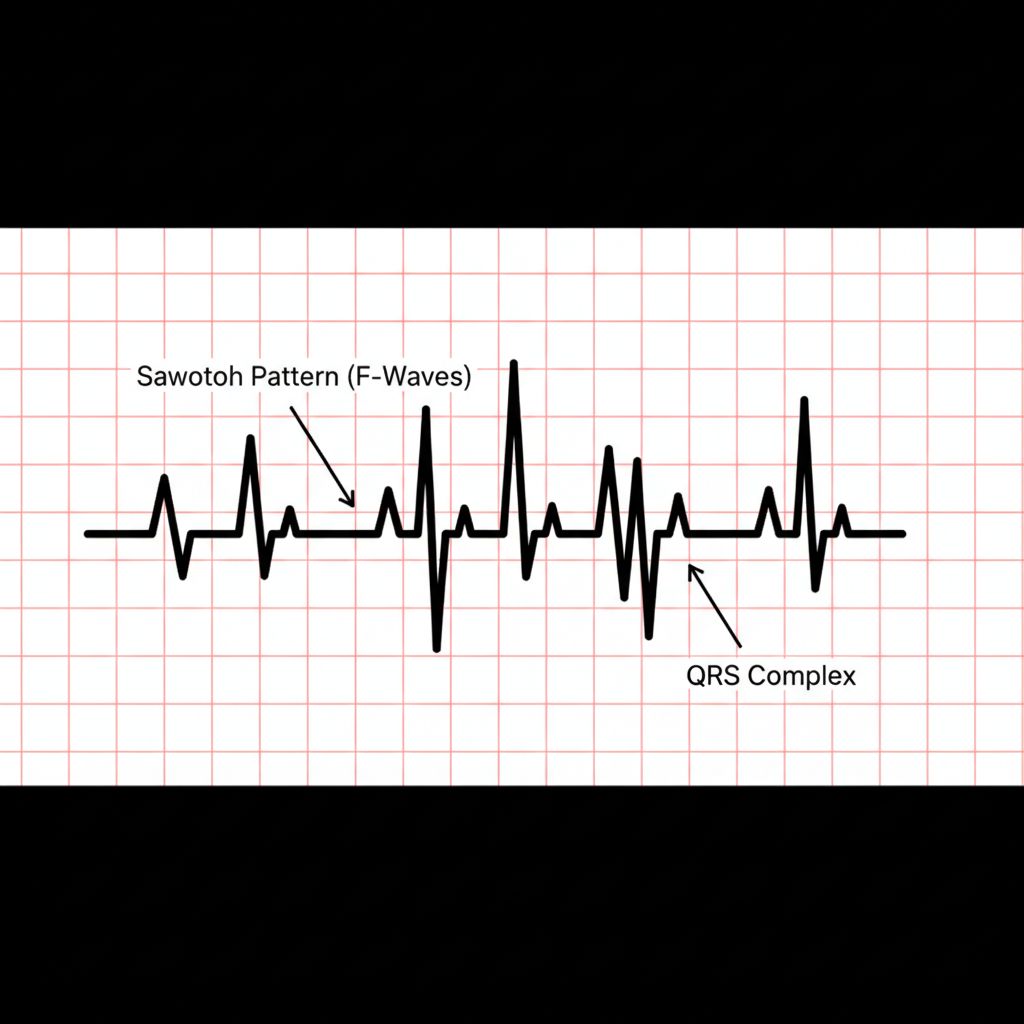
Our goal is to write a Flutter widget that can ingest raw data points and render this specific “sawtooth” geometry clearly, without dropping frames.
Why CustomPainter is the Only Real Choice
You might be tempted to use a package like fl_chart or syncfusion_flutter_charts. For dashboard summaries, those are excellent. For real-time ECG signal processing, they often fall short for three reasons:
- Performance overhead: Most charting libraries wrap every data point in a widget or heavy object model. An ECG stream might send 250-500 samples per second. Creating widgets for that volume will kill your UI thread.
- Specific Grid Standards: Medical ECGs must adhere to strict visual standards (small squares = 0.04s, large squares = 0.2s). Customizing a generic chart axis to match these physical millimeter standards is painful.
- Visual Fidelity: To clearly identify f-waves, you need full control over anti-aliasing and stroke width, which
Canvas.drawPathprovides natively.
The Architecture: Real-Time Data Flow
To visualize this, we need a pipeline. In a production app, your data comes from a Bluetooth Low Energy (BLE) device. For this tutorial, we will simulate the atrial flutter sawtooth pattern using a mathematical generator.
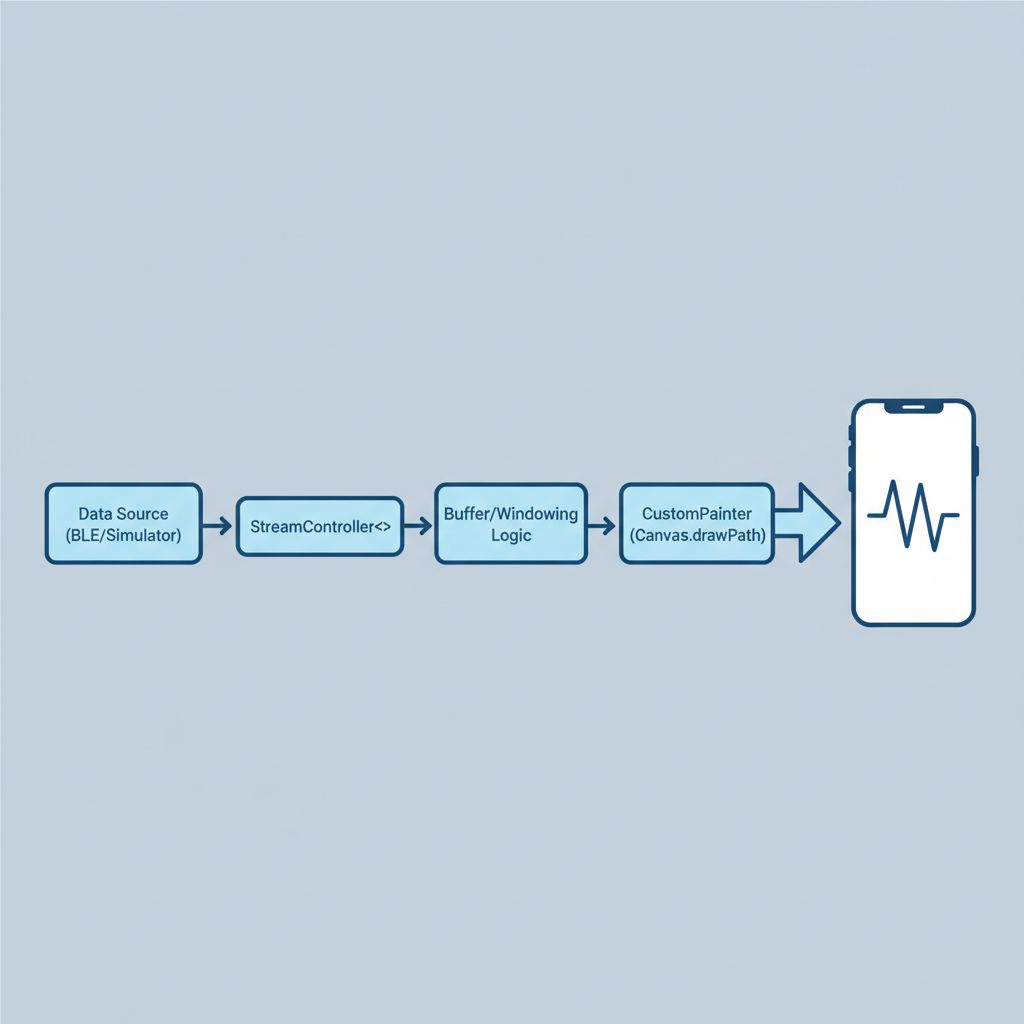
Step 1: The Data Simulator (Generating the Sawtooth)
Let’s create a simulator that mimics the electrical activity of atrial flutter. We need a fast sine wave for the flutter waves and a sharp spike for the QRS complex.
import 'dart:math' as math;

class EcgDataSimulator {
  double _time = 0.0;

  // Simulates a 4:1 Atrial Flutter pattern
  double nextSample() {
    _time += 0.05; // Time step

    // 1. The Sawtooth F-Waves (Fast, continuous sine wave)
    // Atrial flutter rate is typically ~300 bpm
    double fWave = math.sin(_time * 5) * 0.5;

    // 2. The QRS Complex (Ventricular beat)
    // Occurs less frequently (e.g., every 4th f-wave cycle)
    double qrs = 0.0;
    if (_time % (math.pi * 4) < 0.2) {
      // Create a sharp spike
      qrs = 5.0 * math.exp(-10 * math.pow(_time % (math.pi * 4) - 0.1, 2));
      // Dip down for S-wave
      qrs -= 1.5 * math.exp(-10 * math.pow(_time % (math.pi * 4) - 0.2, 2));
    }

    // 3. Add some random noise (sensor artifacts)
    double noise = (math.Random().nextDouble() - 0.5) * 0.1;

    return fWave + qrs + noise;
  }
}
Step 2: The ECG CustomPainter
This is the core of the solution. We use a CustomPainter to draw the medical grid background and the signal path.
A critical optimization here is path metrics. Instead of drawing thousands of individual lines, we construct a single Path object. This allows the GPU to rasterize the line in one operation.
import 'package:flutter/material.dart';

class EcgPainter extends CustomPainter {
  final List dataPoints;
  final double scaleFactor;

  EcgPainter({required this.dataPoints, this.scaleFactor = 1.0});

  @override
  void paint(Canvas canvas, Size size) {
    // 1. Draw the Medical Grid (Background)
    _drawGrid(canvas, size);

    // 2. Draw the ECG Signal
    _drawSignal(canvas, size);
  }

  void _drawGrid(Canvas canvas, Size size) {
    final Paint gridPaint = Paint()
      ..color = const Color(0xFFFFCDD2) // Light red medical grid
      ..strokeWidth = 0.5;

    final Paint majorGridPaint = Paint()
      ..color = const Color(0xFFE57373) // Darker red for major squares
      ..strokeWidth = 1.0;

    // Draw vertical lines (Time)
    // Standard ECG: Small square = 1mm (0.04s), Large square = 5mm (0.2s)
    double step = 20.0; // Logical pixels per small square

    for (double x = 0; x < size.width; x += step) {
      bool isMajor = (x / step) % 5 == 0;
      canvas.drawLine(
        Offset(x, 0),
        Offset(x, size.height),
        isMajor ? majorGridPaint : gridPaint
      );
    }

    // Draw horizontal lines (Voltage)
    double centerY = size.height / 2;
    for (double y = 0; y < size.height / 2; y += step) {
      // Draw lines above and below center
      // ... logic similar to vertical lines ...
    }

    // Draw center baseline
    canvas.drawLine(
      Offset(0, centerY),
      Offset(size.width, centerY),
      majorGridPaint
    );
  }

  void _drawSignal(Canvas canvas, Size size) {
    if (dataPoints.isEmpty) return;

    final Paint signalPaint = Paint()
      ..color = Colors.greenAccent[700]! // High contrast green
      ..strokeWidth = 2.0
      ..style = PaintingStyle.stroke
      ..strokeJoin = StrokeJoin.round;

    final Path path = Path();
    final double stepX = size.width / dataPoints.length;
    final double centerY = size.height / 2;

    // Move to the first point
    path.moveTo(0, centerY - (dataPoints[0] * 20));

    for (int i = 1; i < dataPoints.length; i++) {
      double x = i * stepX;
      // Invert Y because canvas coordinates go down
      double y = centerY - (dataPoints[i] * 20);
      path.lineTo(x, y);
    }

    canvas.drawPath(path, signalPaint);
  }

  @override
  bool shouldRepaint(covariant EcgPainter oldDelegate) {
    // Only repaint if data has changed
    return oldDelegate.dataPoints != dataPoints;
  }
}
Step 3: The Animation Loop
Static charts are easy. Moving charts are hard. To visualize real-time data, we need a widget that manages a buffer of data points and triggers a repaint periodically.
We use a Ticker or a generic Timer depending on the data source frequency. For smooth UI, aligning with Flutter’s frame generation via Ticker is usually best, but for this example, we will simulate a data stream update.
class RealTimeEcgChart extends StatefulWidget {
  const RealTimeEcgChart({super.key});

  @override
  State createState() => _RealTimeEcgChartState();
}

class _RealTimeEcgChartState extends State
    with SingleTickerProviderStateMixin {

  final List _dataBuffer = [];
  final int _maxSamples = 300; // Window size
  final EcgDataSimulator _simulator = EcgDataSimulator();
  late Ticker _ticker;

  @override
  void initState() {
    super.initState();
    // Fill buffer initially
    for(int i=0; i<_maxSamples; i++) {
      _dataBuffer.add(0);
    }

    _ticker = createTicker((elapsed) {
      setState(() {
        // Shift data left
        _dataBuffer.removeAt(0);
        // Add new data point from simulator
        _dataBuffer.add(_simulator.nextSample());
      });
    });

    _ticker.start();
  }

  @override
  void dispose() {
    _ticker.dispose();
    super.dispose();
  }

  @override
  Widget build(BuildContext context) {
    return Container(
      height: 300,
      color: Colors.black, // High contrast background
      child: CustomPaint(
        painter: EcgPainter(dataPoints: _dataBuffer),
        size: Size.infinite,
      ),
    );
  }
}
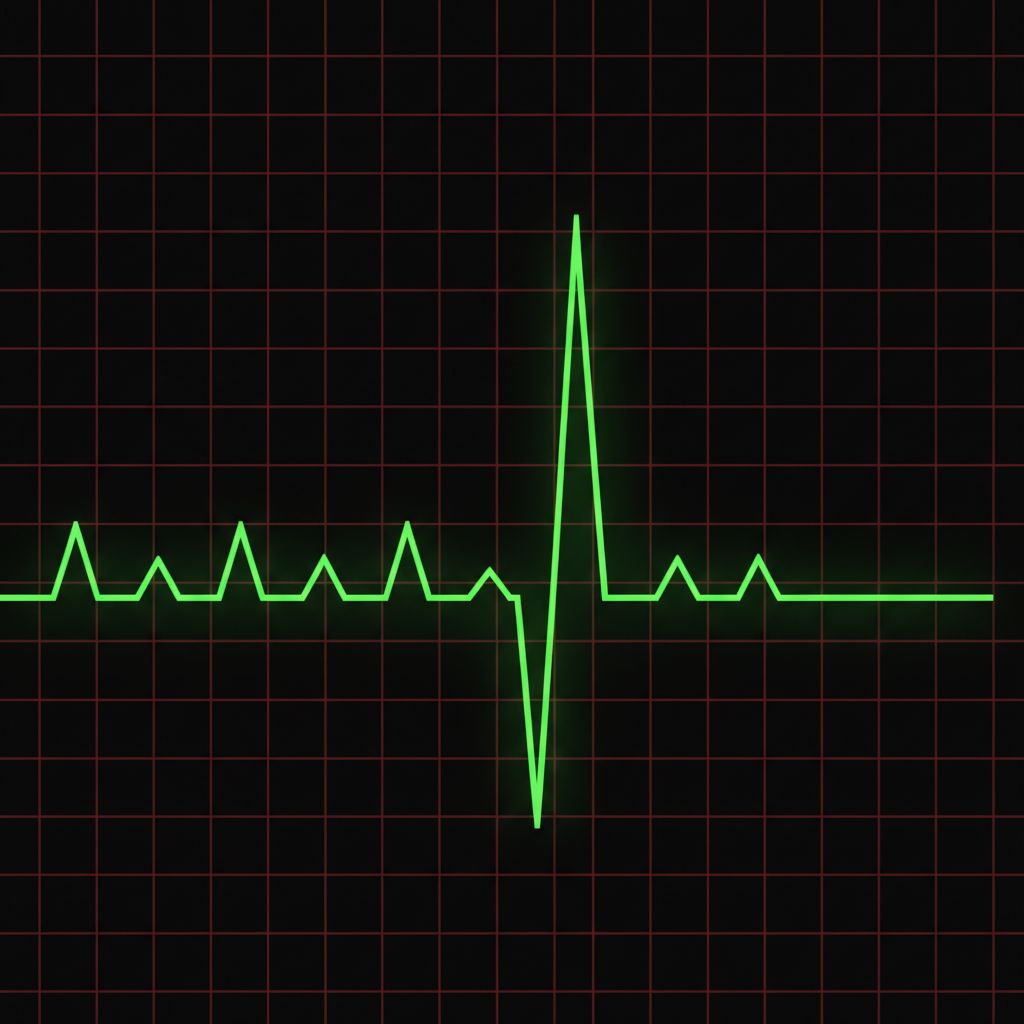
Common Mistakes When Rendering ECGs
I have reviewed code for several health apps, and I see the same mistakes repeatedly when developers try to handle arrhythmia detection algorithms or visualizations.
1. Creating Objects Inside paint()
The paint method might run 60 times per second. If you declare new Paint() inside that method, you are forcing the Garbage Collector to work overtime. Always define your Paint objects as final fields in the class or outside the method.
2. Ignoring “ShouldRepaint”
Flutter needs to know when to redraw. If you return true unconditionally in shouldRepaint, you waste cycles. If you return false when data changes, your chart freezes. Ensure you compare the actual data pointers or a version flag.
3. Naive Path Drawing
If you try to draw 10,000 points using canvas.drawLine in a loop, performance will tank. Always use Path.lineTo and a single canvas.drawPath call. The Skia engine (or Impeller) is heavily optimized for rendering paths.
Advanced Optimization: Using RepaintBoundary
If you have a complex background (like a detailed medical grid with labels and measurements) that doesn’t change, you should separate it from the moving signal.
💡 Pro Tip: Stack two CustomPaint widgets. The bottom one draws the static grid and is wrapped in a RepaintBoundary. The top one draws only the live signal line. This tells Flutter to cache the grid as an image and only redraw the green line every frame.
Stack(
  children: [
    RepaintBoundary(
      child: CustomPaint(
        painter: GridPainter(), // Static background
        size: Size.infinite,
      ),
    ),
    CustomPaint(
      painter: SignalPainter(data: currentData), // Dynamic foreground
      size: Size.infinite,
    ),
  ],
)
Edge Cases: Noise and Artifacts
In a perfect world, the atrial flutter sawtooth pattern is clean. In reality, patients move, electrodes get loose, and muscle noise (EMG) interferes.
⚠️ Warning: Real-time filtering is computationally expensive in Dart. If you are doing heavy Digital Signal Processing (DSP) like Bandpass filters or Fast Fourier Transforms (FFT) to clean the signal, consider moving that logic to a separate Isolate or using FFI (Foreign Function Interface) to call C++ code. Keep the UI thread purely for rendering.
For more on handling heavy computation in Flutter, check the official Flutter documentation on concurrency and isolates.
Conclusion
Visualizing an atrial flutter ECG is a perfect test of a Flutter developer’s ability to handle custom rendering. It forces you to understand the Canvas API, manage frame-by-frame state, and optimize for the rendering pipeline.
By using CustomPainter, you gain:
1. Precision: You can draw the “sawtooth” F-waves exactly as a cardiologist expects to see them.
2. Performance: You bypass the overhead of widget-heavy charting libraries.
3. Control: You can implement specific features like “freeze frame” or “calipers” easily since you own the coordinate system.
Start with the simulator code above, get the wave moving, and then try connecting it to a real data stream. The difference in smoothness compared to standard libraries will be immediately obvious.
FAQ
Can I use this approach for Atrial Fibrillation (Afib) as well?
Yes. The rendering logic is identical. The difference is in the data itself. Afib will show an irregular rhythm and no distinct P-waves or sawtooth pattern. The CustomPainter just draws whatever data you feed it.
How do I handle different screen sizes?
In the paint method, use the size parameter to calculate your width and height dynamically. Never hardcode pixel values. For medical accuracy, calculate the “pixels per millimeter” based on the device’s logical pixel ratio (using MediaQuery.of(context).devicePixelRatio).
Is Dart fast enough for real-time signal processing?
For rendering and basic filtering, yes, Dart is very fast. For complex algorithmic analysis (like automated arrhythmia detection), it is better to offload the math to a background Isolate to prevent UI jank.