
Introduction
If you are building a real-world Flutter application, sooner or later, you will hit the “media wall.” You need a user to upload a profile picture, scan a receipt, or attach a photo to a support ticket. You search for a solution, find the flutter image picker plugin, and think, “Great, this looks easy.”
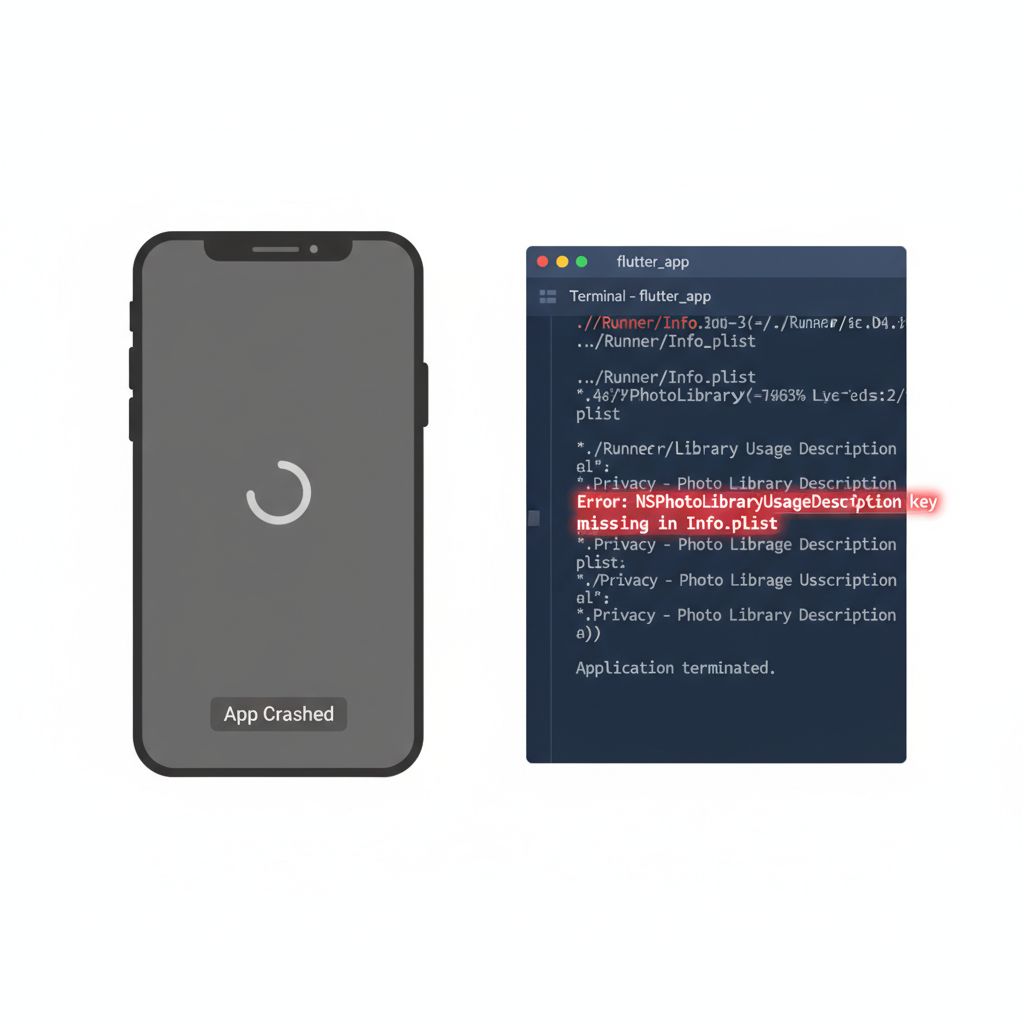
Then reality hits. The app crashes on iOS because of a missing Info.plist key. On Android, the app restarts completely when the user snaps a photo, losing all form data. Or perhaps you’re struggling to handle permissions gracefully across the fragmented Android ecosystem.
I have been there. In my 5+ years of shipping Flutter apps, handling camera and gallery interactions is consistently one of the features that looks simple in a tutorial but breaks easily in production.
This guide is not just documentation. It is a production-grade walkthrough of implementing the `image_picker` package correctly. We will cover single and multiple image selection, handling the notorious Android activity destruction issue, and ensuring your app plays nice with permissions.
What the Problem Is
The core problem isn’t just “picking an image.” It is bridging the gap between your Flutter UI and the native operating system’s strict security and lifecycle requirements.
When a user taps “Upload Photo,” your Flutter app has to:
1. Ask the OS for permission (which varies wildly between iOS, Android 10, and Android 14).
2. Hand over control to an external “Activity” (the Camera app or Gallery).
3. Wait for that external app to finish.
4. Receive the file path (or URI) back securely.
5. Render that data in Flutter.
If any link in this chain is weak—like an unhandled permission denial or a memory limit breach—your user sees a crash or a frozen screen.
Why This Happens (The “Under the Hood” Logic)
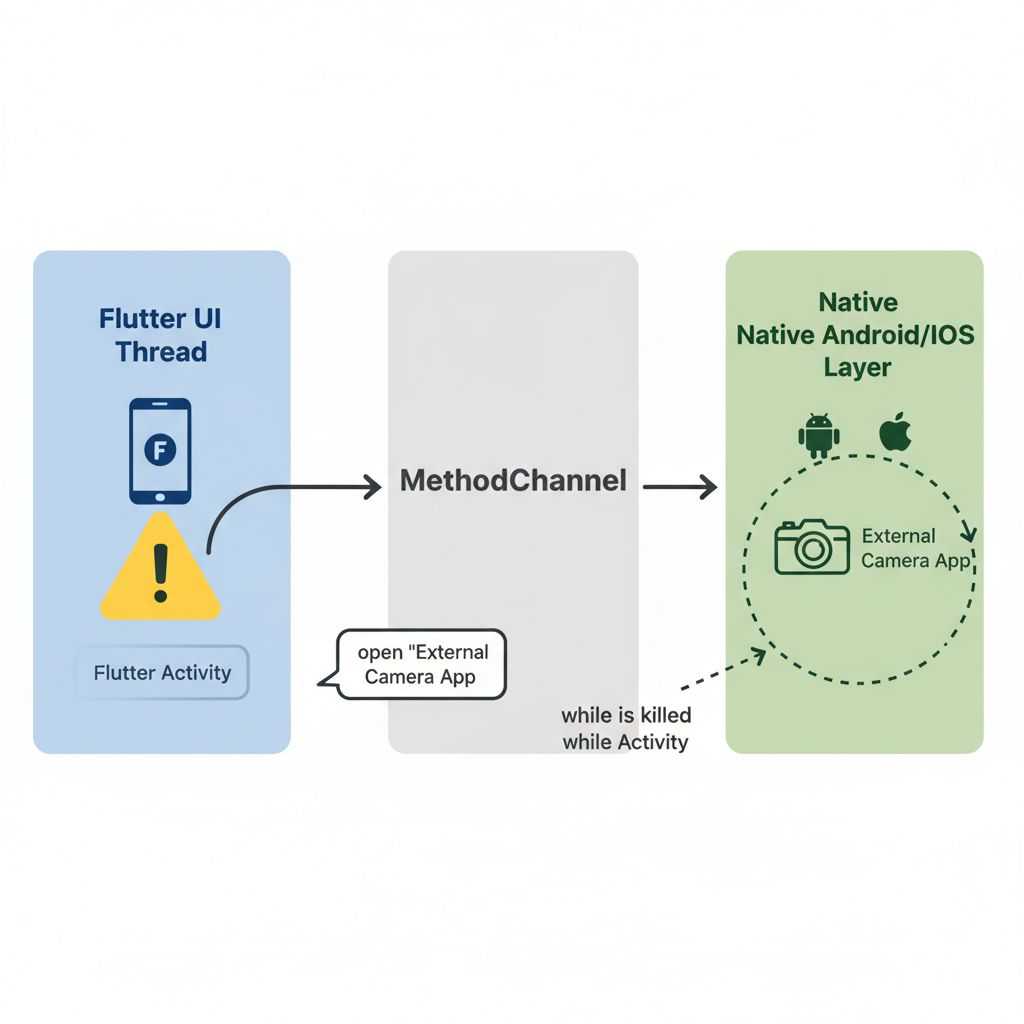
To fix this reliably, you need to understand what `image_picker` is actually doing. It uses Platform Channels.
Flutter itself cannot “see” the camera hardware. It sends a message to the native host (iOS/Android). The native host launches a totally separate application (like the Samsung Camera app or Apple Photos).
Here is the critical part: On Android, when that heavy Camera app launches, the OS often destroys your Flutter activity to save RAM. When the user takes the photo and returns, your Flutter app re-initializes. If you aren’t listening for that “lost” data, the photo is gone, and your user is confused.
When You Usually See This Issue
You will encounter these friction points when:
- Building scalable Flutter MVPs where user-generated content is central to the experience.
- Testing on low-end Android devices (where activity destruction happens aggressively).
- Upgrading your app to target Android 14+ or iOS 17+, where permission scopes have tightened.
- Trying to implement flutter image picker multiple images selection for a bulk upload feature.
If you are focusing on high-performance architecture, understanding how media assets load is crucial. For a deeper dive into structuring apps that handle heavy data, you might want to read about Scalable Flutter MVPs: Cross-Platform App Development.
Quick Fix Summary (Decision Shortcut)
If you are in a rush and just need the logic to work, here is the checklist:
1. Add Dependency: `image_picker` in `pubspec.yaml`.
2. Config iOS: Add `NSPhotoLibraryUsageDescription` and `NSCameraUsageDescription` to `Info.plist`.
3. Config Android: Ensure your `compileSdkVersion` is 34+.
4. Code: Use `ImagePicker().pickImage(source: ImageSource.gallery)`.
5. Lifecycle: Implement `retrieveLostData` for Android.
Step-by-Step Solution
Let’s build a robust service. We will use the `image_picker` package, which is the official plugin maintained by the Flutter team.
1. Installation
Open your terminal and run:
flutter pub add image_picker2. Platform Configuration (Crucial)
This is where 90% of developers fail. You must tell the OS why you need these features.
iOS (`ios/Runner/Info.plist`):
Add these keys. If you don’t, your app will crash instantly upon accessing the picker.
<key>NSPhotoLibraryUsageDescription</key>
<string>We need access to your gallery to let you upload a profile picture.</string>
<key>NSCameraUsageDescription</key>
<string>We need access to your camera to let you take a photo of your receipt.</string>
<key>NSMicrophoneUsageDescription</key>
<string>We need access to the microphone for video recording.</string>
Android (`android/app/src/main/AndroidManifest.xml`):
For most basic use cases, `image_picker` handles permissions automatically. However, ensure your `compileSdk` in `android/app/build.gradle` is set to at least 34 to support the latest Android photo picker features.
3. The Basic Implementation (Single Image)
We will create a helper method. Note the use of `XFile`. In modern Flutter, `XFile` is the cross-platform standard, replacing the old `File` from `dart:io` for plugin interactions.
import 'dart:io';
import 'package:flutter/material.dart';
import 'package:image_picker/image_picker.dart';

class ImagePickerService {
  final ImagePicker _picker = ImagePicker();

  Future<File?> pickSingleImage() async {
    try {
      // Pick an image from the Gallery
      final XFile? pickedFile = await _picker.pickImage(
        source: ImageSource.gallery, // Change to .camera for camera capture
        imageQuality: 80, // Compress image to save bandwidth
      );

      if (pickedFile != null) {
        return File(pickedFile.path);
      }
      return null;
    } catch (e) {
      debugPrint("Error picking image: $e");
      return null;
    }
  }
}
4. Flutter Image Picker Multiple Images
Selecting multiple images requires a slightly different method: `pickMultiImage()`.
  Future<List<File>> pickMultipleImages() async {
    try {
      final List<XFile> images = await _picker.pickMultiImage(
        imageQuality: 70,
      );

      // Convert XFiles to standard Files
      return images.map((xFile) => File(xFile.path)).toList();
    } catch (e) {
      debugPrint("Error picking multiple images: $e");
      return [];
    }
  }
5. Handling Android Activity Destruction (The Pro Move)
This is the most critical part of this guide. If your app restarts when the user takes a photo, the standard `await` call will never finish. You need to check for “lost data” when the app re-initializes.
You should call this method inside your main widget’s `initState` or a dedicated controller.
  Future<void> checkForLostData() async {
    final LostDataResponse response = await _picker.retrieveLostData();

    if (response.isEmpty) {
      return;
    }

    if (response.file != null) {
      debugPrint("Recovered lost image: ${response.file!.path}");
      // TODO: Update your state with this recovered file
    } else {
      debugPrint("Recovered error: ${response.exception?.code}");
    }
  }
Common Mistakes Developers Make
I have reviewed countless pull requests containing these errors:
1. Ignoring `XFile`: Developers try to cast the result directly to `File` without checking for nulls or understanding that web support requires `readAsBytes()` instead of `path`.
2. Blocking the UI Thread: Loading a 12MB image directly into memory to display it can cause jank. Always use `imageQuality` to resize the image at the source, or use a thumbnail generation package.
3. Forgetting iOS Permissions: This is the #1 cause of crashes during Apple Review.
4. Not Handling Cancellation: If the user opens the gallery and presses “Back”, `pickImage` returns `null`. If you don’t handle this, you get a `Null check operator used on a null value` error.
Warnings and Practical Tips
⚠️ Warning on Simulators: The iOS Simulator has a fake gallery, but the Camera usually does not work. Always test camera functionality on a real physical device.
💡 Tip – Image Compression: The `imageQuality` parameter (0-100) is your best friend. Setting it to `80` can reduce file size by 50% with almost no visible loss in quality. This is vital for faster uploads to your server.
💡 Tip – Web Support: If you are targeting the web (`flutter image picker web support`), you cannot access `File(path)`. You must use `XFile.readAsBytes()` to get the data for upload or display.
For those looking to integrate these images into a high-performance rendering pipeline, especially if you are manipulating them later, understanding the rendering engine is key. Check out our insights on Flutter Impeller & AI: Scaling Cross Platform App Development Services.
Edge Cases and Limitations
While `image_picker` is great, it is a general-purpose tool.
* Custom UI: If you want to build a custom gallery picker (like Instagram’s picker where you see the gallery inside your app’s UI), `image_picker` cannot do this. It opens the *system* picker. You would need a package like `photo_manager` for custom UIs.
* Video Compression: The package allows picking videos (`pickVideo`), but it offers very limited compression controls compared to images.
* HEIC Files: On iOS, images might be in HEIC format. Ensure your backend server can handle HEIC, or convert them to JPEG within the Flutter app before uploading.
What Happens If You Ignore This Problem
Ignoring proper implementation leads to a “brittle” app.
1. User Frustration: If the app crashes every time they try to change their avatar, they will uninstall it.
2. Data Loss: Without `retrieveLostData`, users on older Android phones will lose the photo they just took *and* the form data they filled out before opening the camera.
3. App Rejection: Apple will reject your binary if the Info.plist keys are missing, even if you don’t use the camera immediately.
FAQ Section
Q: How do I pick a video instead of an image?
A: Use `_picker.pickVideo(source: ImageSource.gallery)`. It returns an `XFile` just like images, but points to a video file.
Q: Can I limit the user to only pick 1 image?
A: Yes, use `pickImage()` instead of `pickMultiImage()`. The system UI will enforce the single selection constraint.
Q: Why is my image rotated 90 degrees on Android?
A: This is an EXIF metadata issue. The `image_picker` usually handles this, but if you are displaying the image using `Image.file`, ensure you aren’t stripping metadata during any intermediate processing.
Q: Does this work on Flutter Web?
A: Yes, `image_picker` has excellent web support. However, remember to use `network` or `memory` constructors for your Image widgets, as local file paths do not exist in the browser sandbox.
Final Takeaway & Conclusion
Implementing the flutter image picker is a rite of passage for Flutter developers. It shifts you from building static UI to interacting with the device’s hardware.
The secret to stability is not the picking code itself—it is the setup. Ensure your permissions are airtight, handle the `null` cases when a user cancels, and strictly implement the Android lifecycle recovery logic.
Actionable Checklist:
1. Check `Info.plist` for usage descriptions.
2. Set `imageQuality: 80` to prevent memory bloat.
3. Implement `retrieveLostData` if you care about Android users.
4. Test on a real device, not just the simulator.
By following these steps, you turn a potential crash-point into a smooth, professional feature. Now, go capture those images.
For more details on the package, you can always refer to the official image_picker documentation on pub.dev or the Flutter Image class API.